Showing posts with label photoshop tutorial. Show all posts

October 8, 2014

"The Magic of Christmas" Chalkboard Christmas Card
Free Download

Yes, Yes,  Halloween is still to come, but I know it, you know it, EVERYONE knows it. It's time to start thinking about Christmas.

Today I have another Chalkboard Christmas Card for you to download. For some reason we're really on a chalkboard kick.  This card is also featured in our etsy shop if you don't want to do the editing and printing yourself.

I've done something a little different with this card than I have with other cards, in the past.  The image area is a clipping mask. What is a clipping mask? I'll let adobe explain.
"A clipping mask is a group of layers to which a mask is applied. The bottommost layer, or base layer, defines the visible boundaries of the entire group. For example, suppose you have a shape in the base layer, a photograph in the layer above it, and text in the topmost layer. If the photograph and the text appear only through the shape and outline in the base layer, they also take on the opacity of the base layer. "
Clear as mud? I thought so. You can read more about it here. Scroll down to see the tutorial on how to add an image using a clipping mask.

I used two fonts for this Christmas Card, DK Carte Blanche and DK Wayang. They both can be downloaded from DaFont.com.


*Remember - Loving Life Designs downloads are for followers only. We ask that if you download our creations you become a follower. It only takes a second. Thanks.

If you don't want to handle the pain of editing or printing yourself, let Loving Life Designs do it for you! You can purchase this card and many others in our new print shop.

This card requires two downloads. The front of the card, which is a PSD file, and the back of the card. For the back of the card I have two download options for you, a JPG or a PNG.


Thanks for reading.

Enjoy - (: 


How to add your family image using the clipping mask to loving life designs Christmas card.
  1. In photoshop click file/open.

     
  2. Navigate to your family photo. 


  3. Click on it and then hit enter/return or the open button. 
  4. Drag the photo onto the christmas card. (Seriously, it's as easy as grab, drag and drop.)


  5. Move the family photo layer to just above the layer titled clipping mask shape
  6. Right click the family photo layer and select create clipping mask. 


  7. If you have it lined up correctly the happy couple with the dog should disappear and your image should only be seen in it's place. 
  8. Resize the image to your liking.


  9. Thats it! Enjoy your Christmas Card.  If you have any trouble email us at lovinglifedesigns at gmail.com
Creative Commons License

February 25, 2012

Photoshop Tutorial; How to Correct Skin Tones

After Elizabeth's super easy tutorial on how to Correct White Balance in Photoshop, I thought it would be good know how to easily correct skin tones. This literally is a 2 minute fix.

You are going to go from this..... 
  
 To this...

See the difference? It's so slight is ridiculous! But so much better!!

First you open up the image you wish to color correct. I chose to use one of the image that Elizabeth had used in her tutorial.

You are then going to make what is called an "Adjustment Layer" ( Click on a circle that is half black and half white)


 You will open a "Selective Color Layer Adjustment"


This is what the dialog box will look like.

For my numbers, I slide the bars to what I felt I needed to do to make the color correction. It will be different for every image.

Selective Coloring is a tricky Dialog Box. Make sure that "Relative" is check and not "Absolute". Depending on the Color you are on (we want to be on "Red" because that is the color we want to eliminate from the skin tones) depends on how you will slide the bars.

Sliding the slider to the right for Cyan will eliminate the cyan color from the image and sliding it to the left will saturate the cyan color. With the other color sliders, (magenta, and yellow) sliding the slider to the right will saturate the Magenta and Yellow color in the image, while sliding it to the left will eliminate those colors. While the Black slider, will add contrast to the image. Slide the black slider to the right to increase the black and slide it to the left to decrease the blacks.

Go and play with what I am talking about. You will see it. Play with each Slider individually, meaning bring each slider back to 0 before you move on to the next to see how the slider works for each color. 


These are the numbers I felt gave me the correct skin tones I wanted. 


Now I erase everything except for the skin tones.


press "E" to select your eraser tool (make sure your "hardness" is not at your hardest)  and "X' to switch your foreground and background colors to make white the foreground color and the black the background color. Then erase everything but the skin tones. It doesn't have to be perfect. I did this in 5 sec, seriously.


After doing that, I still felt it was a little to red. So I created another Selective color Adjustment Layer and only slide the Cyan color 


I now have three layer. My original image, my first selective color layer and my second selective color layer.  Then i saved it as a jpeg as a new file. I always keep my original files.


Now remember it was a hot hot summer day and they were already a little red from the heat, but the image has improved a lot.. no?

Here is a close up of Audrey before and after.

Here is the before and After

 I hope this was helpful!

If you have any questions please leave a comment or email us at lovinglifedesigns@gmail.com

January 19, 2012

How to Create Perfect Levels Photoshop Tutorial

This is a technique I learned a few years ago in one of my photography classes. *Remember I am not the photographer in residence, that's Michelle's deal, but because I majored in Film as an elective course I took a photography class.

There are a bunch of other ways to achieve the same result but this seems to be an all around easier way to white balance/correct the levels in your images in Photoshop without just using the auto white balance button or auto levels button.

This is a quick 2-5 minute fix for those pictures that just don't seem to be the right color.

This is the picture I would like to fix. It's bland, the color is flat, it's dingy and not to mention really really yellow. It's a picture of my husband the day he blessed our little one almost 5 years ago.


So here you have it How to white balance and create amazing levels in Photoshop.

1. Open the file you wish to work on.


2. In the adjustments layer box (should be on the right side of the window) click on create a new levels adjustments layer.


A new layer will appear just above your background layer/original image.


 3. In the Levels adjustment window you'll want to change the drop down menu from the RGB (all colors) channel to just the red channel. What you're doing is isolating the reds that are in the picture.


4. Hold down the ALT key and click and hold the black triangle below the levels histogram box.


5. Your image will go red, slide the black triangle toward the middle of the box, when you see little black dots start to appear stop. Sometimes you won't have to move the triangle. In my case, I did not need to adjust the lower red levels in this picture. Note that the number under the black triangle remains 0.


6. Hold down the ALT key and click and hold on the white triangle below the histogram box.


7. Your image will go black, slide the white triangle toward the middle of the box, when you see red dots start to appear stop. Like with the black triangle you might not need to slide the triangle to make the dots appear. In my case, I did need to slide the triangle to adjust the lighter reds. Note that the number has changed from 255 to 236.


There you have it. You have adjusted the darker reds and lighter reds of your image. No need to adjust the greys/middle tones. You'll notice your image has a bit of a red tint. Don't worry it will go away as you continue to adjust.


8. Go back to the drop down menu and select/isolate the green channel.


9. Repeat steps 4-7 for the green channel. Note that again ,in my image, there was no need to adjust the darker greens and the number remained 0, but my lighter greens needed to be adjusted and changed from 255 to 215.


Now the image is a little green.


10. Go back to the drop down menu and select/isolate the blue channel.


11. Repeat steps 4-7 for the blue channel. Again no change with the darker blues, but the lighter blues changed from 255 to 161.


Viola you are done!

 
Now, make any minor adjustments you feel you need. Maybe you need to adjust the red a little or it looks a little too blue. Just have fun with it.

Once you are done with the adjustments merge the two layers together (or not) and save the file. Most times because I don't want to lose the original file, I will save it with a new name in the same location.

For instance this pictures title is IMG_0528. My newly adjusted picture kept the same name but I added (fixed) to the end of it. It saves the two right next to one another so I can see what adjustment was made.


After that I just close out the Photoshop file. No need to keep the PSD if I have saved the original. Hard drive space, at least on my computer, is a hot commodity and I don't want to bog down my hard drive with PSD files that I won't ever use again.

So here is a side by side look of the before and the after.


I hope you found this tutorial helpful. I found the knowledge EXTREMELY helpful when I learned it in my class.

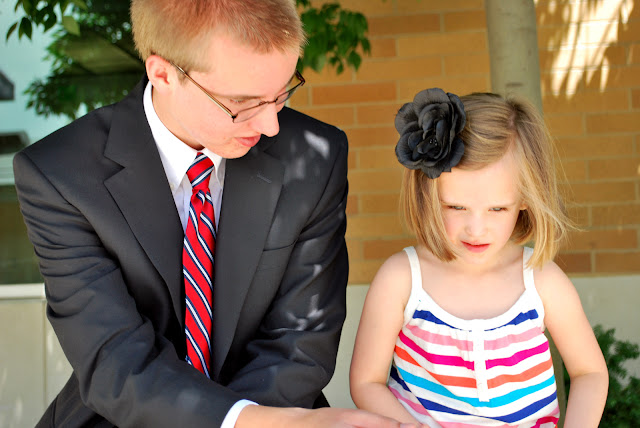
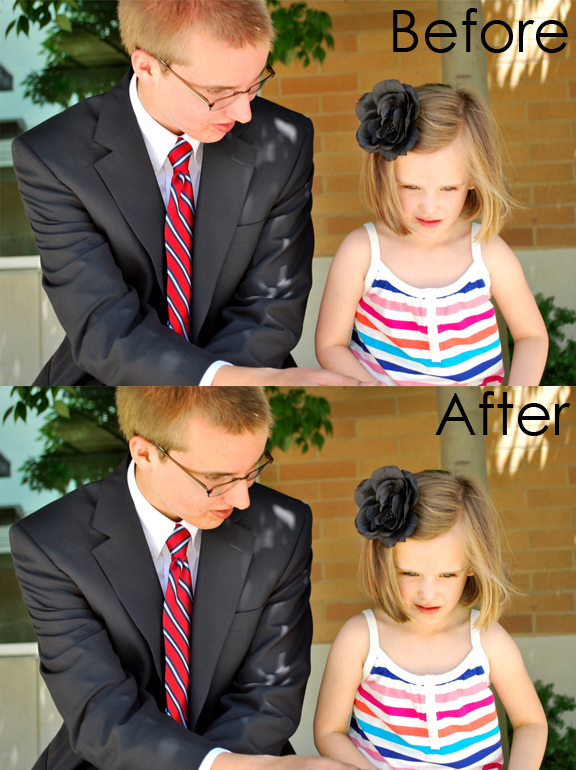
Here is other example of a before and an after with this technique.  It's a picture of my little brother and my daughter Audrey, the one getting blessed in the tutorial, an hour before he headed into the MTC in Provo.

The original image looks great. It has great color. I made sure I white balanced the camera before taking the picture. Everything was reat with the picture.


To a novice eye you wouldn't see a problem with the original image but, compared to the adjusted picture (below), you'll notice that the original looks almost flat and bland. The blacks look almost grey. His red tie doesn't seem as bright.


The new image is lively and rich with color.

Here is a close up of  difference between the two images.


Can you believe that a 2 minute adjustment can make such an amazing difference? Who'd a thunk it!

If you have any questions or suggestions please feel free to leave a comment or email us at lovinglifedesigns at gmail dot com.

Coming soon: Michelle is going to be doing a post about how to quickly correct skin tone.