Showing posts with label tutorial. Show all posts

April 15, 2015

How to Remove & Hide Blogger Attribution Widget
{Blogger Tutorial}

Today I have another easy blogger tutorial for you and AGAIN it will take just 30 seconds to add to your blog code.

This tutorial is on how to remove the blogger attribution widget easily AND without frustration. I don't know about you but I have tried other tactics to delete it and that mean little widget keeps showing back up.

I have found that this method is the fastest, easiest and works 100%* of the time (*when I do it).

How to Remove & Hide Blogger Attribution Widget: A Blogger Tutorial

1. go to Dashboard > Template > Customize.
2. Click on Advanced.
3. Scroll to Add CSS.
4. Add the following code.
#Attribution1 { display:none; }
5. Make sure the Blogger attribute is gone in the preview window.
6. Click Apply to Blog.

Viola You are done!

What do you think? Are there any other tutorials you would like to see?

Creative Commons License

March 11, 2015

How to Remove & Hide Subscribe to Post Link in Blogger
{Blogger Tutorial}

Today I have a tutorial for you about hiding that annoying and design ruining link (unwanted text can always ruin the feel and flow of a design!) at the bottom of your blogger page.

There are two ways to get rid of this link. An easy way and a hard way.

The hard way has you deleting code and what not - I am not the biggest fan of deleting code if you don't have to. As a beginner you might delete something you don't intend to or won't delete enough and it's always super hard to figure out what the problem is. 

The easy way is just simply adding some CSS code to hide it.

Today I am going to show you the easy way. *REMEMBER - First download and backup your current tutorial!

This is another one of those 30 second blogger updates that can dramatically improve the look of your blog - Okay maybe not dramatically but it does make the link go away.

How to Remove & Hide Subscribe to Post link: A Blogspot Tutorial

1. Go to Dashboard > Template > Edit HTML.
2. A few lines down you'll find <b:skin>--</b:skin>

3. Click the arrow next to it to expand your blogs template code.
4. Add the FOLLOWING code just about the closing </b:skin> tag - make sure you place it before the entire closing tag - }]]></b:skin>.
.feed-links { display:none; }
5. Preview your template and make sure it worked.
6. Save your work.

Viola, you are now done!

Want an even easier way to add this code to your blog? Follow these SUPER easy instructions.

1. Go to Dashboard > Template > Customize.
2. Click on Advanced.
3. Scroll down to add CSS.
4. Add the ABOVE code in the box. See photo below.


5. Click Apply to Blog.

Thats it! All done!
Creative Commons License

December 16, 2014

How to make Blogger Comments Avatar Image Round
{Blogger Tutorial}

Last week I showed you how to turn your Blogger About Me widget image from square to round. This week I am showing you how to make your commentors avatar image round. Again, just like last week, this update will take you about 30 seconds.

How to Make Blogger Comments Avatar Image Round: A Blogspot Tutorial

1. Go to Dashboard > Template > Edit HTML.
2. A few lines down you'll find <b:skin>--</b:skin>


3. Click the arrow next to it to expand your blogs template code.
4. Scroll down until you find #comments .avatar-image-container img
5. Just after the { but before the closing } you will need to add the following code.
-webkit-border-radius: 50em; 
-moz-border-radius: 50em; 
border-radius: 50em;
6. And change the border width from 1px to 0px.
7. Save your template.

Viola you are done! Again bask in the awesomeness of your round avatar.

If you have any questions feel free to leave a comment and I will be happy to answer them. If you apply this update to your blog, I would love to see it in action. Leave a comment and post a link to your blog.

Creative Commons License

December 12, 2014

How to make blogger 'about me' profile picture round
{Blogger Tutorial}


Tonight (yes tonight! I blog when I can. Kiddos are asleep!) I have a really simple update you can make to your blog in about 30 seconds. Circles and triangles are all the rage right now in the design world. And thats fine with me. I'm a minimalist and I LOVE minimalist designs and the simple circle is the best form of minimal design.

Seriously, this is the fastest update ever. I think it would take you longer to read this then it would to implement this.

How to Make Blogger "About Me" Profile Picture Round: A Blogspot Tutorial

1. Go to Dashboard > Template > Edit HTML.
2. A few lines down you'll find <b:skin>--</b:skin>


3. Click the arrow next to it to expand your blogs template code.
4. Scroll down and find ]]></b:skin> copy and paste the following code just ABOVE it.
.profile-img { margin:0 auto 0; -webkit-border-radius: 50em; -moz-border-radius: 50em; border-radius: 50em; }
5. Preview your template - make sure it worked.
6. Save your template.

Viola, you are done! Now bask the awesomeness of your round profile avatar.

The border-radius property is a shorthand property for setting the four border properties. This property allows you to add rounded borders to elements. You can learn more about the border-radius property here.

If you have any questions feel free to leave a comment and I will be happy to answer them. If you apply this update to your blog, I would love to see it in action. Leave a comment and post a link to your blog.

Wanna know how to make your commenters profile picture a circle, like here on Loving Life Designs, to match your new and improved profile about me avatar? (like pictured below?)


Sorry. You'll have to read about it next week - shameless plug, I know.

Creative Commons License

October 8, 2014

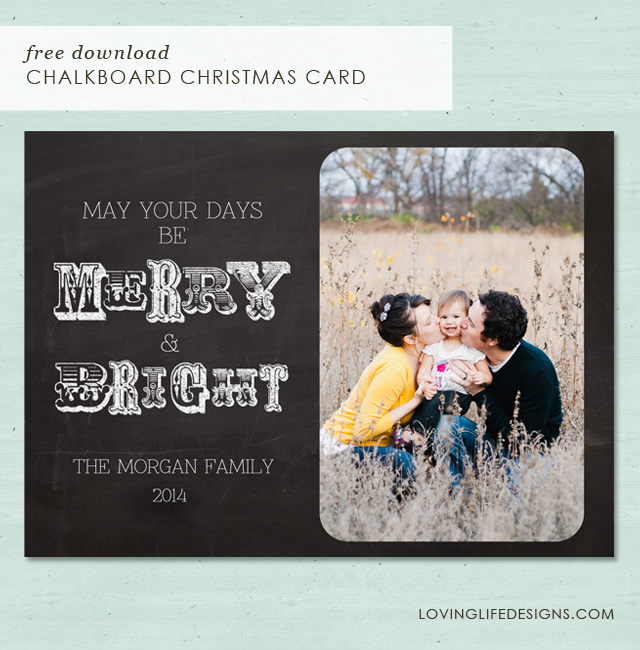
"The Magic of Christmas" Chalkboard Christmas Card
Free Download

Yes, Yes,  Halloween is still to come, but I know it, you know it, EVERYONE knows it. It's time to start thinking about Christmas.

Today I have another Chalkboard Christmas Card for you to download. For some reason we're really on a chalkboard kick.  This card is also featured in our etsy shop if you don't want to do the editing and printing yourself.

I've done something a little different with this card than I have with other cards, in the past.  The image area is a clipping mask. What is a clipping mask? I'll let adobe explain.
"A clipping mask is a group of layers to which a mask is applied. The bottommost layer, or base layer, defines the visible boundaries of the entire group. For example, suppose you have a shape in the base layer, a photograph in the layer above it, and text in the topmost layer. If the photograph and the text appear only through the shape and outline in the base layer, they also take on the opacity of the base layer. "
Clear as mud? I thought so. You can read more about it here. Scroll down to see the tutorial on how to add an image using a clipping mask.

I used two fonts for this Christmas Card, DK Carte Blanche and DK Wayang. They both can be downloaded from DaFont.com.


*Remember - Loving Life Designs downloads are for followers only. We ask that if you download our creations you become a follower. It only takes a second. Thanks.

If you don't want to handle the pain of editing or printing yourself, let Loving Life Designs do it for you! You can purchase this card and many others in our new print shop.

This card requires two downloads. The front of the card, which is a PSD file, and the back of the card. For the back of the card I have two download options for you, a JPG or a PNG.


Thanks for reading.

Enjoy - (: 


How to add your family image using the clipping mask to loving life designs Christmas card.
  1. In photoshop click file/open.

     
  2. Navigate to your family photo. 


  3. Click on it and then hit enter/return or the open button. 
  4. Drag the photo onto the christmas card. (Seriously, it's as easy as grab, drag and drop.)


  5. Move the family photo layer to just above the layer titled clipping mask shape
  6. Right click the family photo layer and select create clipping mask. 


  7. If you have it lined up correctly the happy couple with the dog should disappear and your image should only be seen in it's place. 
  8. Resize the image to your liking.


  9. Thats it! Enjoy your Christmas Card.  If you have any trouble email us at lovinglifedesigns at gmail.com
Creative Commons License

July 24, 2013

How to Download and Install
Loving Lifes Blogger Templates
{Blogger Tutorial}

I've had several questions, lately, on how to download and install Loving Life Designs Blogger Templates. I hope this clears up any confusion there might be on how to do this.

First you'll need to decide on which template you would like to use on your blog. For this tutorial I have chosen to download and install my Simple Two Tone Template Sunshine and Clouds. Click on the download here button or text that has been provided as a link.

After you have clicked on the link you SHOULD be linked to this or a similar box.com webpage. If you are not sent to this page please let me know, and let me know which template is not working. If you are seeing this page then you are in the correct place. 


Next, in the top left there is a download button - Click it. 
    

It should then download the XML file. Take note as to where it was downloaded on your machine. 

Now you'll want to open your blogs dashboard and click on Template. 

On the top left of the browser window is a back up and restore button - Click it. 


A window looking like the one below should pop up. 


If you have made changes to your blog and would like to keep those for any reason or to make a backup of how your blog looks now, incase there is a problem with the upload, click on download full template and save it. 

If you don't care click choose file below the phrase "upload a template from a file on your hard drive". Find the new template file on your hard drive and click choose or okay. 

The pop up window will then look like this. 
With a little spinny wheel telling you it's uploading. 

Once the template has uploaded the window should close automatically. You can see that the new template has taken affect when you see the new template in the live on blog screen. 


To see the blog full screen click on view blog.


Viola you are done. 


Clear as mud? 

Creative Commons License

February 27, 2013

How to add s3slider to Blogger - (Blog Tutorial)

A while back I wrote a post on how to create an automatic fading slideshow in Blogger. It was a two part post. Part one was about making images big enough for the slideshow and part two was about creating the slideshow in blogger.

After several complaints about the slideshow not working correctly I have decided to make a new tutorial with a new slideshow method. It's the same method Loving Life Designs uses on our home/landing page.

This new method uses the s3slider created by Boban KariÅ¡ik. You can see a demonstration and read the workshop on his website.  My method doesn't implement the text overlay. I wanted my slideshow, for the home page, to be plain and simple. But I'll be showing you how to add the text over lay if you would want it.

First thing you are going to want to do, just like I explained in part one, is determine how large you want the slideshow to be. In my slideshow example site, my images are 850px wide and 423px heigh. It's important that all the images are the same size and you know the size of your images. Write it down somewhere you'll need to remember.

These are some of the images I used for the slideshow on our home page and on my example site. Michelle created them. I love them.


The next thing you need to do is add the following javascript code to your blog. *before you make any changes to your blog HTML you'll want to save a backup of your blog. If you don't know how to do that post a comment and I'll tell you. 

<script src='http://elizabethspencer.webs.com/jquery.js' type='text/javascript'/>
<script src='http://elizabethspencer.webs.com/s3Slider.js' type='text/javascript'/>

<script type='text/javascript'> 
$(document).ready(function() { 
 $(&#39;#s3slider&#39;).s3Slider({ 
 timeOut: 4000 
 }); 
}); 
</script>

To start, you'll want to go your template tab.

Then you'll click on Edit HTML. 


A new window will pop up and you'll want to paste the code, provided above, directly below. </title> and above <b:skin>. Just like pictured below. It's at the top - don't scroll down. 


Save your template - But don't close the box just yet.  *you should've, before you started, saved a backup of your blog. 

Now, we are going to add the following CSS to the template.  (This CSS is for a slideshow without the overlay text - keep reading to find out how to add that back in.)


#s3slider {
border:0px solid #ffffff;
margin: 0 auto 30px;
margin-left:10px;
width:850px; /* important to be same as image width */
height:423px; /* important to be same as image height */
position: relative; /* important */
overflow: hidden; /* important */
}

#s3sliderContent {
margin: 0px;
padding: 0px;
width:850px; /* important to be same as image width or wider */
position: absolute; /* important */
top: 0; /* important */
margin-left: 0; /* important */
}

.s3sliderImage {
float: left; /* important */
position: relative; /* important */
display: none; /* important */
}

.s3sliderImage span {
font-size:13pt;
}

.clear {
clear: both;
}

Scroll down til you see. ]]></b:skin>. Directly above that you'll want to paste the code, provided in the box above. Just like I have pictured below. 

This is why remembering what your images size is important. You'll want to replace my width of 850px to that of your images width both in the #s3slider and in the #s3sliderContent. Then you'll want to replace my height of 423px with that of your images height. You only need to change it in the #s3slider


Save your template and now close this window. 

If you would like to add the overlay text - replace the following code ---

.s3sliderImage span {
font-size:13pt; 

---with this code.

.s3sliderImage span { 
 position: absolute; /* important */ 
 left: 0; 
 font: 10px/15px Arial, Helvetica, sans-serif; 
 padding: 10px 13px; 
 width: 850px; 
 background-color: #000; 
 filter: alpha(opacity=70); /* here you can set the opacity of box with text */ 
 -moz-opacity: 0.7; /* here you can set the opacity of box with text */ -
khtml-opacity: 0.7; /* here you can set the opacity of box with text */ 
opacity: 0.7; /* here you can set the opacity of box with text */ 
color: #fff;  
display: none; /* important */ 
 top: 0; 
/* 
 if you put top: 0; -> the box with text will be shown at the top of the image 
 if you put bottom: 0; -> the box with text will be shown at the bottom of the image */ 
}

Play around with the code and make it what you want. You can change the text. You can change the background color. right now it's set to black and the opacity makes it kind of grey. Play around and make it what you want it to be.  - If you need help leave a comment and I'll post another tutorial about it.

FINALLY, we add the HTML to a widget box.

To do this first, you'll want to click on layout.


Then click - where you want to add the slideshow - add a gadget.


Select HTML/Javascript


In the configure box paste the following HTML

<div id="s3slider">
    <ul id="s3sliderContent">
        <li class="s3sliderImage">
            <img src="#">
            <span>Your text comes here</span>
        </li>
        <li class="s3sliderImage">
            <img src="#">
            <span>Your text comes here</span>
        </li>
        <div class="clear s3sliderImage"></div>
    </ul>
</div>

You'll want to replace the # with your images url and change the span to text that matches your image (you don't really have to if you don't use the overlay. )

if you want to add additional images add the following

<li class="s3sliderImage">
            <img src="#">
            <span>Your text comes here</span>
        </li>

above <div class="clear s3sliderImage"></div>.

This is what my code looks like.

<div id="s3slider">
<ul id="s3sliderContent">

<li class="s3sliderImage">
<img border="0" alt="Free Prints" width="850" src="http://i1251.photobucket.com/albums/hh552/lovinglifedesigns/Loving%20Life%20Slideshow/slideshow1.png" height="423" alt="free Prints"/>
<span>Free Prints</span>
</li>

<li class="s3sliderImage">
<img border="0" alt="Free Announcements" width="850" src="http://i1251.photobucket.com/albums/hh552/lovinglifedesigns/Loving%20Life%20Slideshow/slideshow5-1.png" height="423" alt="free Announcements"/>
<span>Free Announcements</span>
</li>

<li class="s3sliderImage">
<img border="0" alt="Free Poster Designs" width="850" src="http://i1251.photobucket.com/albums/hh552/lovinglifedesigns/Loving%20Life%20Slideshow/slideshow4-1.png" height="425" alt="Poster Designs"/>
<span>Poster Design</span>
</li>

<li class="s3sliderImage">
<img border="0" alt="Free Blogger Templates" width="850" src="http://i1251.photobucket.com/albums/hh552/lovinglifedesigns/Loving%20Life%20Slideshow/slideshow2-1.png" height="425" alt="Free Blogger Templates"/>
<span>Free Blogger Templates</span>
</li>

<li class="s3sliderImage">
<img border="0" alt="Custom Blog Designs" width="850" src="http://i1251.photobucket.com/albums/hh552/lovinglifedesigns/Loving%20Life%20Slideshow/slideshow3-1.png" height="425" alt="Custom Blog Design"/>
<span>Custom Blog Design</span>
</li>

<div class="clear s3sliderImage"></div>
</ul>
</div>

Save and cross your fingers - you're done.

What do you think? How did it turn out? Leave a comment linking to your blog.

UPDATE - March 6, 2013 

Lee asked if there was a way to slow down the transitions between the images and if you could add a link to the images.  Both are a pretty simple fix, however, I'll only be getting to fixing the slideshow transition length today. 

The jquery function script has two options. In the current tutorial the only option change we have implemented is the timeOut function which controls the length of time the image is on the screen. The default is 6000. In the current tutorial I have it set to 4000, making it a little faster than the default. It's in milliseconds, by the way, so add or subtract 1000 if you want it on for a longer period of time or a shorter period of time. 

The second option is the length of the transition. In the current tutorial I am using the default length of 1000 (about a second of time). It's using the default because I haven't told it other wise. If you want about one second to remain the current transition speed no need to add the following. If you would like to have it be a slower transiton add fadeTime (make sure the T is capitalized) just behind timeOut:4000 but before }); 

In the example below. I've added a transition speed of about 2 seconds. Make sure there is a comma separating the two function controls. 

<script src='http://elizabethspencer.webs.com/jquery.js' type='text/javascript'/>
<script src='http://elizabethspencer.webs.com/s3Slider.js' type='text/javascript'/>

<script type='text/javascript'> 
$(document).ready(function() { 
 $(&#39;#s3slider&#39;).s3Slider({ 
 timeOut: 4000, fadeTime: 2000
 }); 
}); 
</script>

Creative Commons License

December 5, 2012

Another Christmas Card Design- 2012 - {Free Christmas Card Design}

UPDATE: I've updated the download to allow you to change the date of the card. I'm sorry I never changed it till now.

Hey Everyone!

Today, I know finally... your thinking...what Michelle is posting! That is crazy! I have been a little MIA on the blog lately. Apologies!

Anyways, I designed this a few weeks back and am now just getting it up on the site for everyone to download and use! I am terrible!

I really love it! It's a 5x7 photo card.


*Loving Life Designs downloads are for followers only. If you wish to download our creations we ask that you become a follower, it only takes a second. Thank you. 


It's a psd (photoshop) file. You can edit the "The Morgan Family" and add your own picture. The font I used is HERE, from dafont.com. It's called  Znikomit.

If you need help downloading a font and installing it, Elizabeth wrote and awesome tutorial. Go HERE to read it.

Here is a quick over view on how to add your photo to the photo card. Or any photo card for that matter.

1. Download the file. It's always best to choose your desktop so it's easier to find. It will be titled "Christmas 2012lovinglife.psd"

2. Open it up in Photoshop.

It should look like this when opened. You should see two layers in your layers palette.  One layer will be the "Merry and Bright" and the top layer is "The Morgan Family" font layer. * Remember to download and install the font before you edit the file or Photoshop will choose a different font.


3. Select the photo you would like to use and drag it into the file. Press "enter" once you get it in there.  The photo should be your top layer now.


Or you can go to "File" "Place" to open your photo in the file.


4. You are now going to drag your photo's layer and put it at the bottom of all the layers. Once there you can resize (apple "T" or Ctrl "T") and move your photo to the area it's suppose to go.


5. Now, just change "The Morgan Family" to your family name or to Love, The.... etc... it's all up to you! Just be careful about not moving the font layer. It's aligned just right under the Merry and Bright.

6. SAVE!!! I would save the psd. Then "save as" a jpeg.

7. Last thing, send the jpeg file to your local print store. Walgreens, Walmart, Costco, Sam's Club etc.

Enjoy and remember it's always FREE!!!!

Happy Christmas!!!